Workflows automate repetitive tasks based on triggers and conditions. Set up rules to tag conversations, assign agents, send notifications, and more.
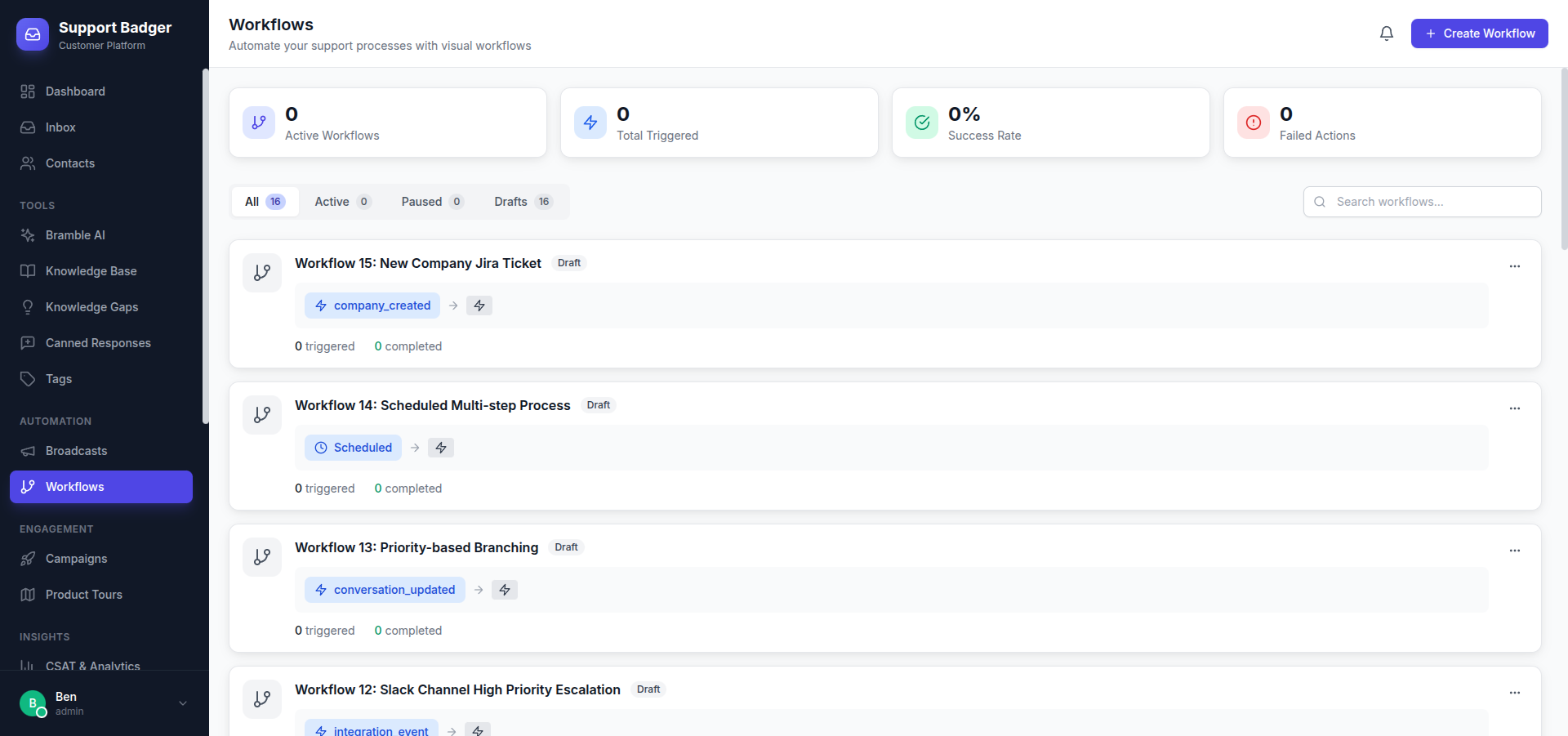
Visual Workflow Builder
Create complex automations with our drag-and-drop visual workflow builder:
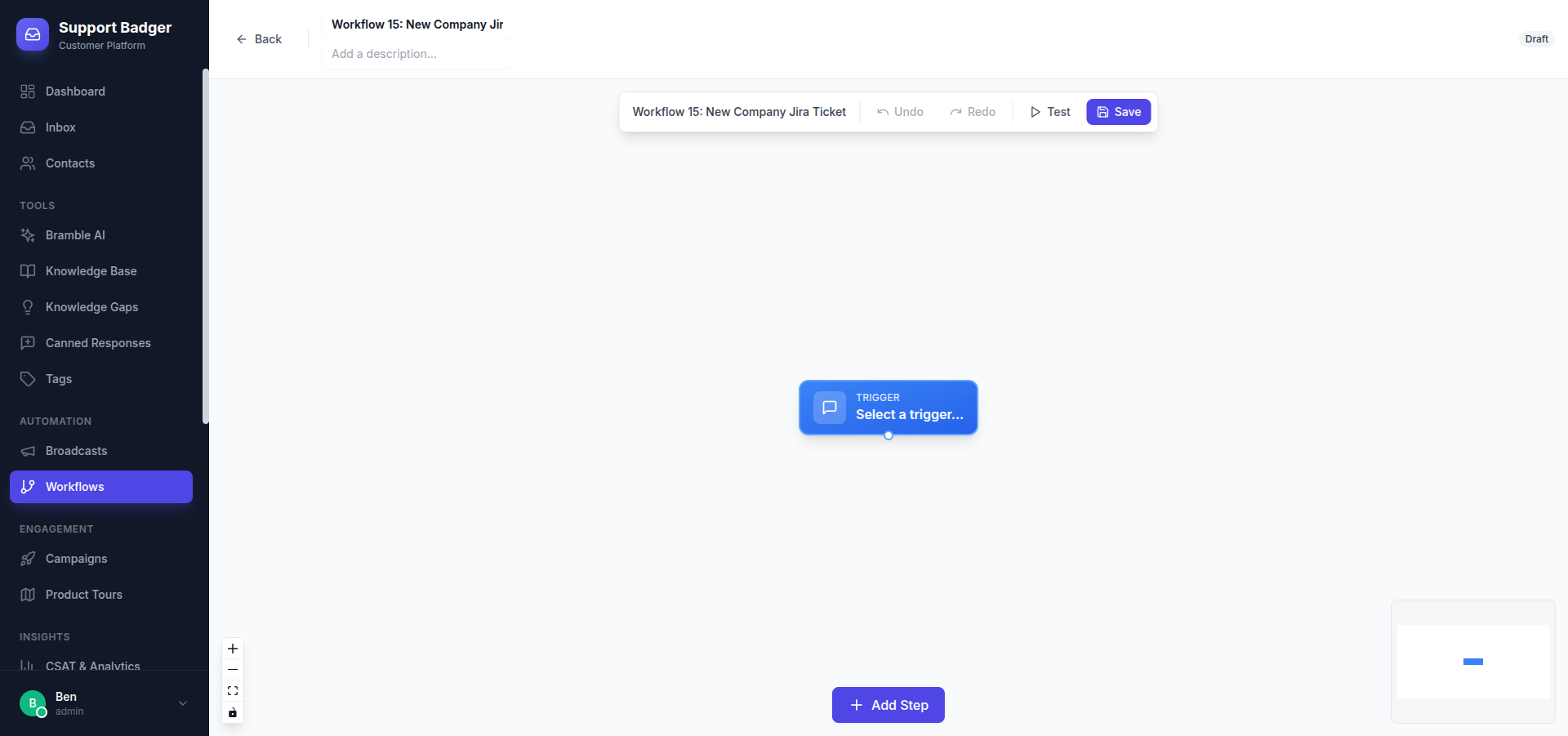
Overview
Workflows consist of:
- Trigger - What starts the workflow
- Conditions - Rules that must be met
- Actions - What happens when conditions are met
Creating a Workflow
- Go to Settings → Workflows
- Click New Workflow
- Choose a trigger
- Add conditions (optional)
- Add one or more actions
- Name and save your workflow
Triggers
| Trigger | Description |
|---|---|
| Conversation Created | When a new conversation starts |
| Message Received | When a customer sends a message |
| Conversation Updated | When any field changes |
| Conversation Resolved | When marked as resolved |
| Time-based | After a set period (e.g., no reply in 24h) |
| Tag Added | When a specific tag is applied |
Conditions
Filter when workflows run with conditions:
Conversation Conditions
- Status is/is not (open, pending, resolved)
- Channel is (email, chat, Slack)
- Has/doesn't have tag
- Assignee is/is not
- Priority is/is not
Contact Conditions
- Company is/is not
- Plan/tier is
- Custom field matches
Message Conditions
- Contains keyword
- From email domain
- Sentiment is (positive, negative, neutral)
Actions
| Action | Description |
|---|---|
| Add Tag | Apply a tag to the conversation |
| Remove Tag | Remove a tag from the conversation |
| Assign To | Assign to a specific agent or team |
| Set Priority | Change the priority level |
| Send Email | Send a notification email |
| Send Slack Message | Post to a Slack channel |
| Add Internal Note | Add an automated note |
| Change Status | Move to pending, resolved, etc. |
| Snooze | Snooze for a set duration |
Example Workflows
VIP Customer Alert
Trigger: Conversation Created
Condition: Company plan = Enterprise
Actions: Add "VIP" tag, Notify #support-vip Slack channel
Auto-Tag Billing Questions
Trigger: Message Received
Condition: Message contains "invoice" OR "payment" OR "billing"
Actions: Add "Billing" tag
Stale Conversation Reminder
Trigger: Time-based (48 hours since last reply)
Condition: Status = Open, Assignee is not empty
Actions: Send email to assignee, Add "Needs Attention" tag
Auto-Close Resolved
Trigger: Time-based (7 days since marked pending)
Condition: Status = Pending, No customer reply
Actions: Change status to Resolved, Send closing message
Managing Workflows
Enable/Disable
Toggle workflows on or off without deleting them. Useful for seasonal campaigns or testing.
Execution Order
Workflows run in order from top to bottom. Drag to reorder if one workflow depends on another.
Testing
Use the "Test" button to simulate a workflow on a sample conversation without actually running the actions.
Best Practices
- Start simple - Begin with basic workflows, add complexity later
- Name clearly - Use descriptive names like "Tag-Billing-Keywords"
- Avoid loops - Don't create workflows that trigger each other
- Test first - Always test before enabling in production
- Review regularly - Audit workflows quarterly