The Inbox is your command center for customer support. All conversations from email, chat, Slack, and other channels flow into a single, organized view.
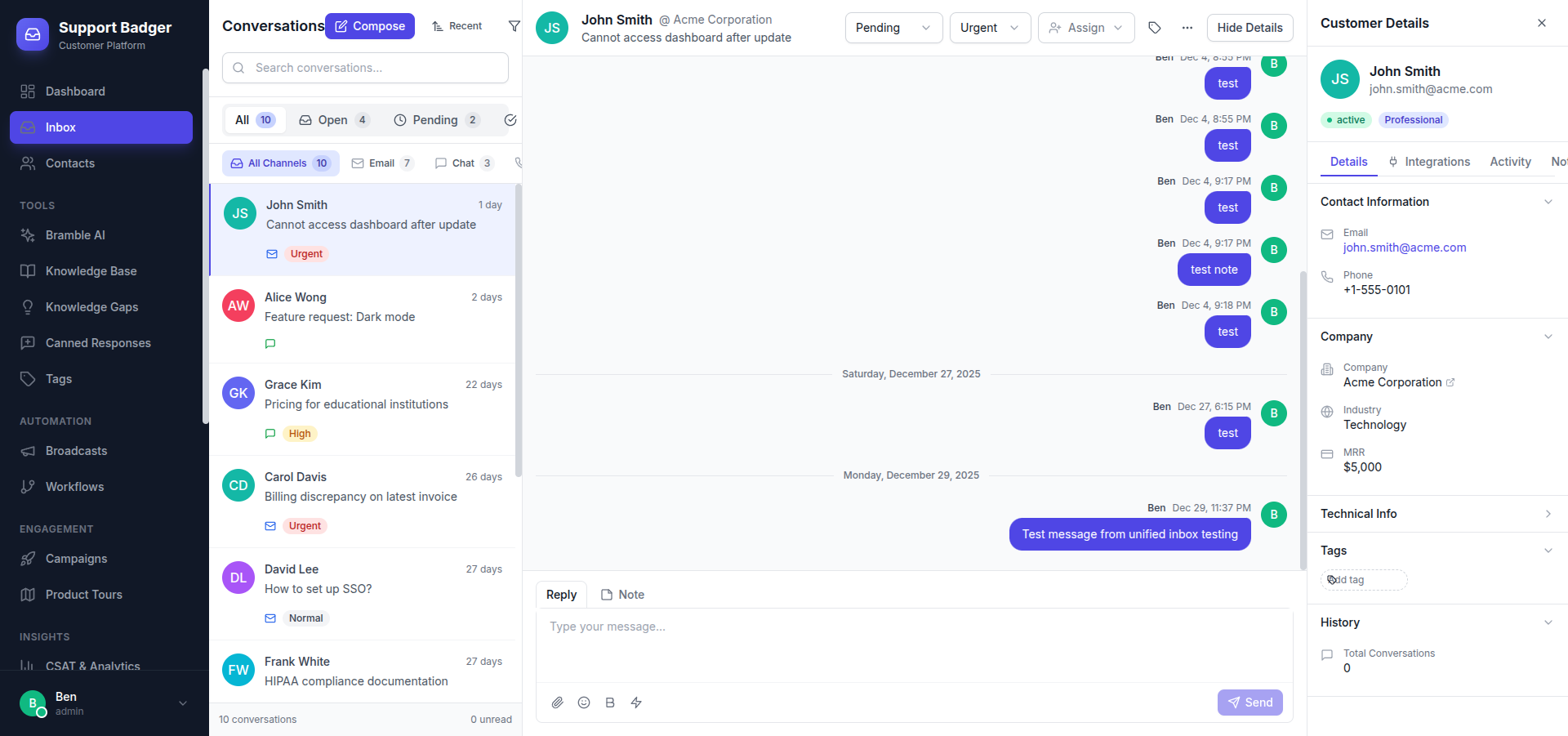
Inbox Overview
The inbox is divided into three main areas:
- Sidebar - Filter conversations by status, assignee, tags, and more
- Conversation List - Browse and select conversations
- Conversation Detail - View and respond to the selected conversation
Conversation Statuses
| Status | Description |
|---|---|
| Open | Active conversations awaiting response |
| Pending | Waiting for customer response |
| Snoozed | Temporarily hidden, will reopen at scheduled time |
| Resolved | Completed conversations |
Working with Conversations
Replying to Customers
- Select a conversation from the list
- Type your response in the composer at the bottom
- Use the toolbar to format text, add attachments, or insert canned responses
- Click Send or press
Cmd/Ctrl + Enter
Internal Notes
Add private notes visible only to your team:
- Click the Note tab in the composer
- Type your internal note
- Notes are highlighted with a yellow background
Using Canned Responses
Quickly insert pre-written responses:
- Type
/to open the canned response menu - Search by name or shortcut
- Press Enter to insert
- Customize before sending if needed
Assignment
Assign conversations to team members for accountability:
- Click the assignee dropdown in the conversation header
- Select a team member or leave unassigned
- Assignees receive notifications about their conversations
Auto-Assignment
Set up Assignment Rules to automatically route conversations based on:
- Customer attributes (company, plan, location)
- Conversation content (keywords, topics)
- Channel (email, chat, Slack)
- Round-robin among available agents
Tags & Organization
Use tags to categorize and filter conversations:
- Click the tag icon to add tags
- Tags can be color-coded for quick identification
- Filter the inbox by tags using the sidebar
- Use tags in reports and analytics
Keyboard Shortcuts
| Shortcut | Action |
|---|---|
Cmd/Ctrl + Enter | Send message |
Cmd/Ctrl + K | Quick search |
E | Resolve conversation |
J / K | Navigate up/down conversation list |
/ | Open canned responses |
N | Toggle internal note mode |
SLA Indicators
Conversations show SLA status when SLA policies are configured:
- Green - Within SLA
- Yellow - SLA warning (approaching deadline)
- Red - SLA breached
Bulk Actions
Manage multiple conversations at once:
- Select conversations using checkboxes
- Use the bulk action menu to:
- Assign to agent
- Add/remove tags
- Change status
- Snooze